![Mosaic Full Logo Blue (Transparent).png]](https://support.mosaic-solutions.com/hs-fs/hubfs/Mosaic%20Full%20Logo%20Blue%20(Transparent).png?height=31&name=Mosaic%20Full%20Logo%20Blue%20(Transparent).png)
1. Log in to the Mosaic Analytics Inventory Console.
https://backoffice-console.mosaic-pos.com/
2. Click on the 3-lines to display the side-panel menu.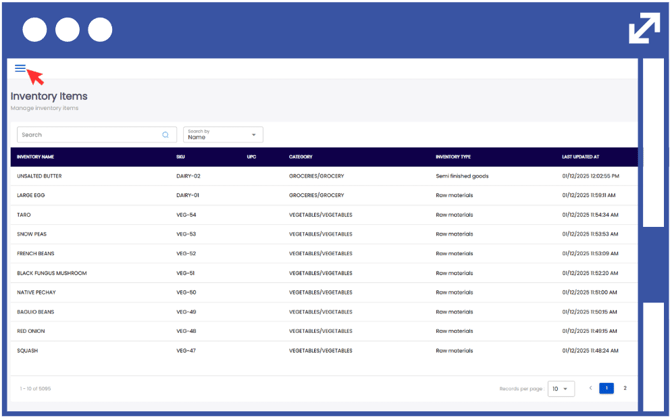
3. On the side-panel menu, click on "Inventory".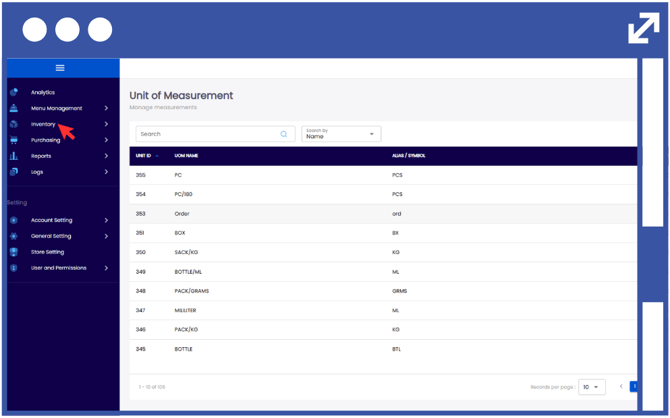
4. Click "Inventory Adjustments".
5. Select "Adjustments".
6. Click "Add Stock Adjustment".
7. From the drop-down list, select the branch location.
8. From the drop-down list, select the adjustment type.
9. Input the adjustment date.
Notes:
You can manually enter the date using the (YYYY/MM/DD) format, or click the calendar icon to select a date from the current calendar range.
When performing any inventory adjustment (Adjust Quantity, Loss, Add, or New), entering notes is mandatory.
10. Click "Next".
11. Click "Add Asset Item".
12. From the drop down list, select the inventory item that will be adjusted.
Note:
The Unit of Measure will automatically be added based on the configuration of the inventory item.
13. Input the Current Quantity.
14. Input the Real Quantity.
Notes:
Current Quantity is based on transactions made on the POS.
Real Quantity is the actual inventory you physically count and verify in stock.
The adjustment quantity will automatically appear once the current quantity and the actual quantity have been entered. It represents the difference between the current and actual quantities.
Repeat steps 11 to 14 if you want to make more inventory adjustments.
15. Click "Save".