![Mosaic Full Logo Blue (Transparent).png]](https://support.mosaic-solutions.com/hs-fs/hubfs/Mosaic%20Full%20Logo%20Blue%20(Transparent).png?height=31&name=Mosaic%20Full%20Logo%20Blue%20(Transparent).png)
1. Log in to the Mosaic Analytics Inventory Console.
https://backoffice-console.mosaic-pos.com/
2. Click on the 3-lines to display the side-panel menu.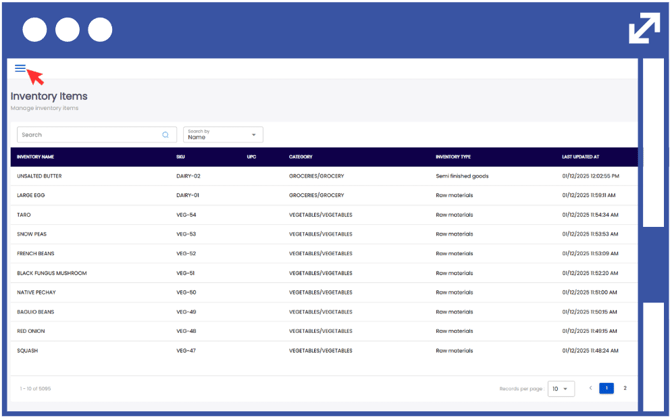
3. On the side-panel menu, click on "Inventory".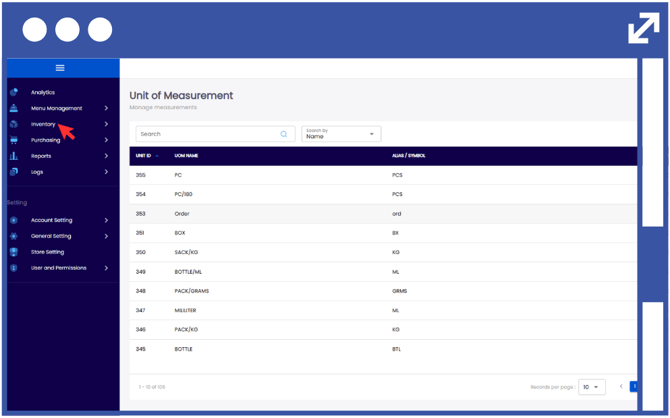
4. Select "My Inventory".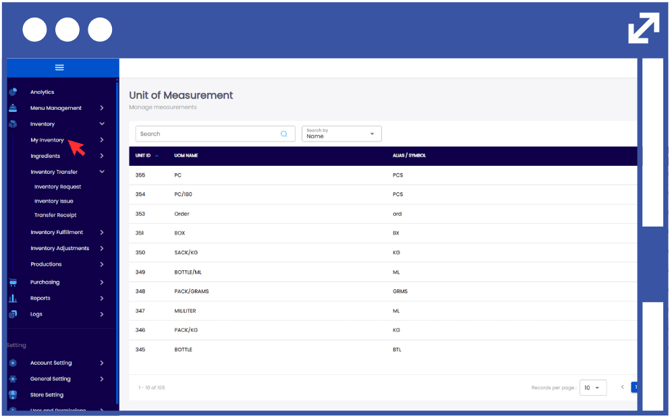
5. Select "Unit of Measurement".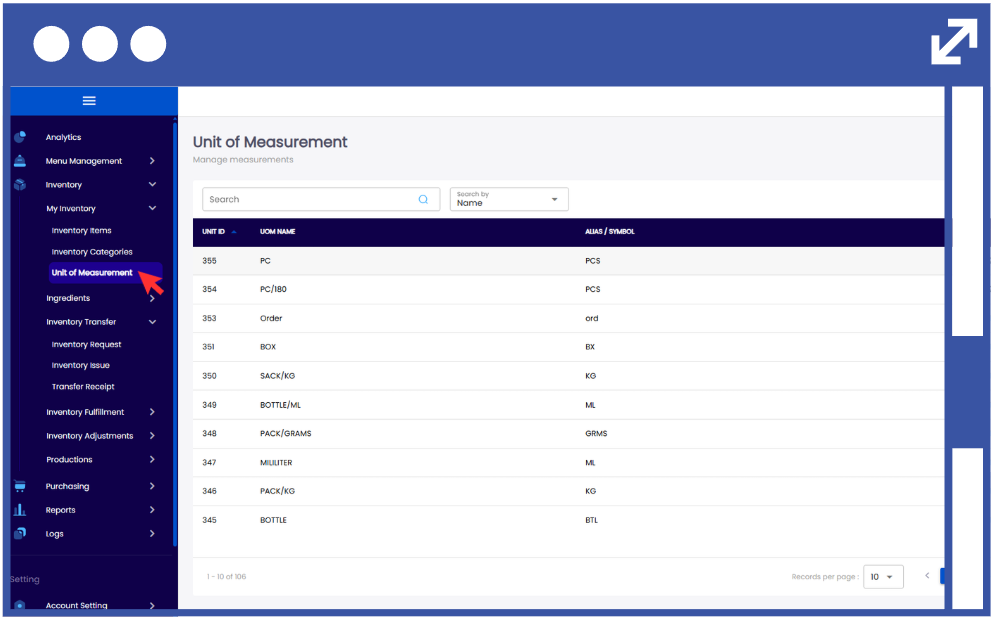
6. Click "Add UOM".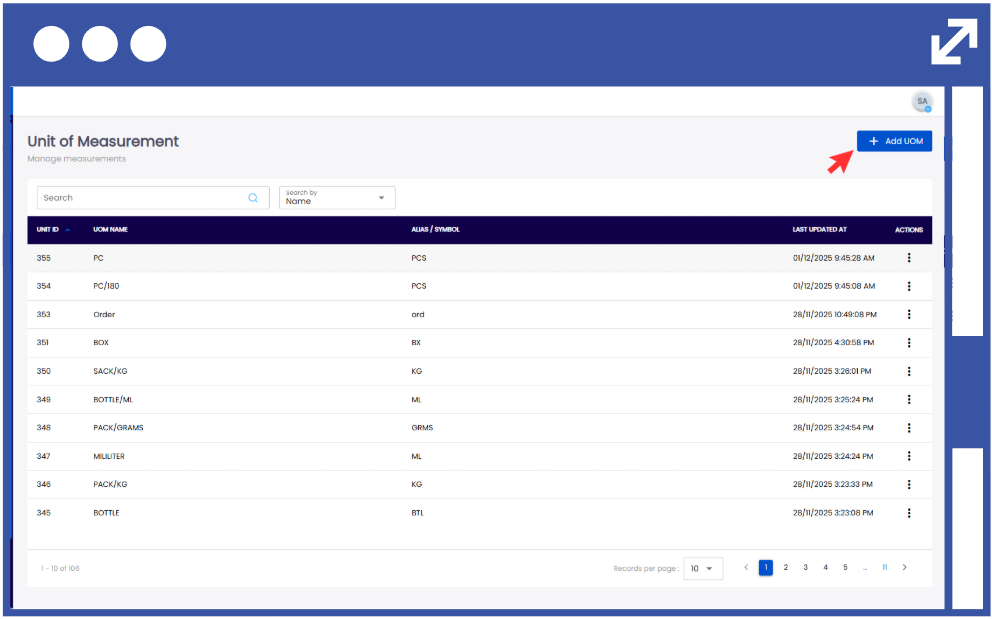
Note: You can click on the minimize button to reduce the size of the window.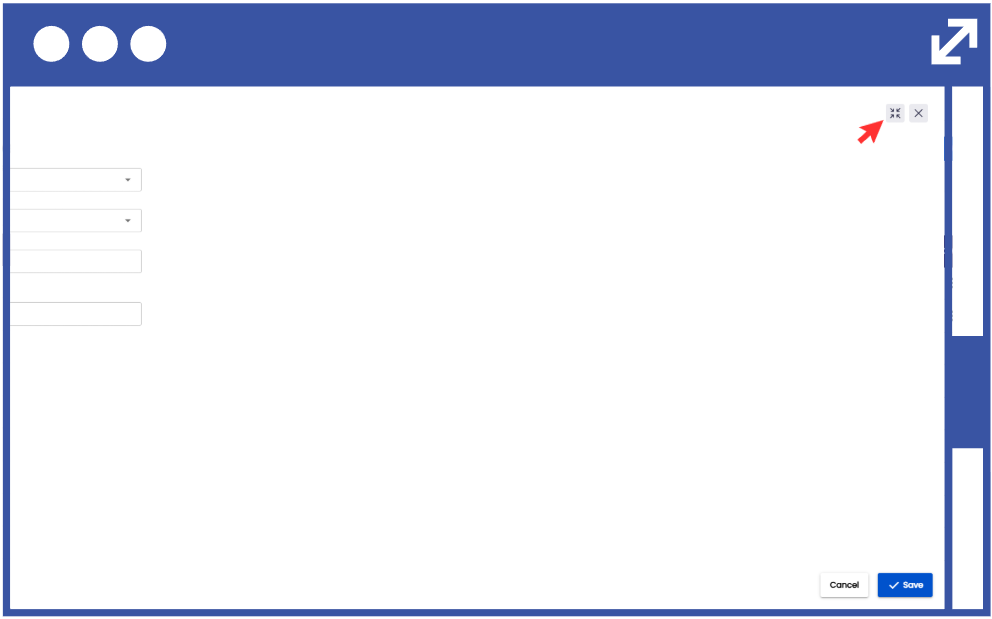
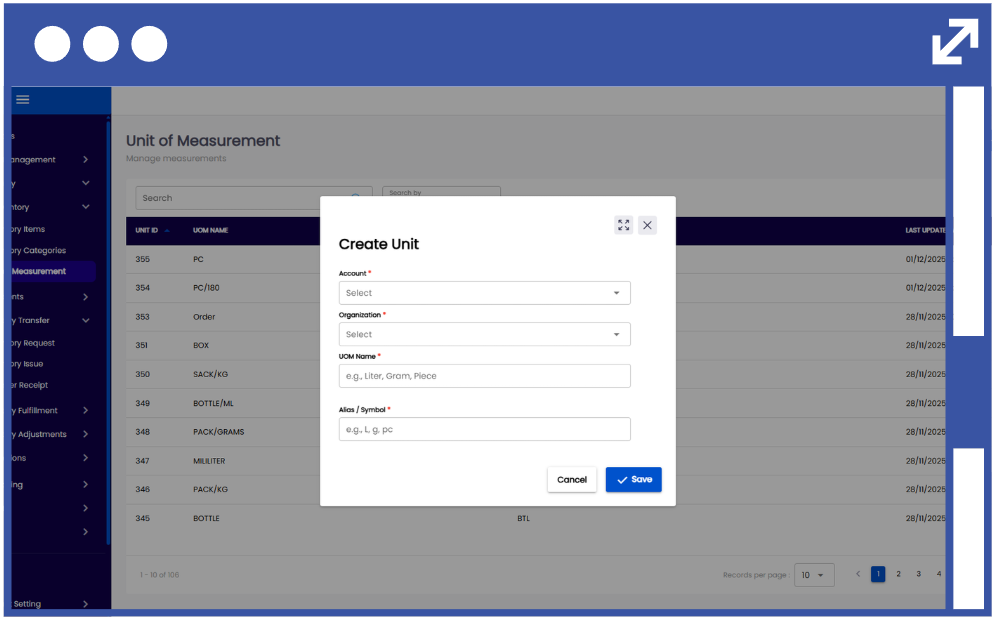
7. Select the "Account Name" and "Organization" from the drop-down list.
8. Input the desired "UOM Name".
(e.g., Liter, Gram, Piece)
9. Input the desired "Alias / Symbol".
(e.g., L, g, pc)
10. Click "Save".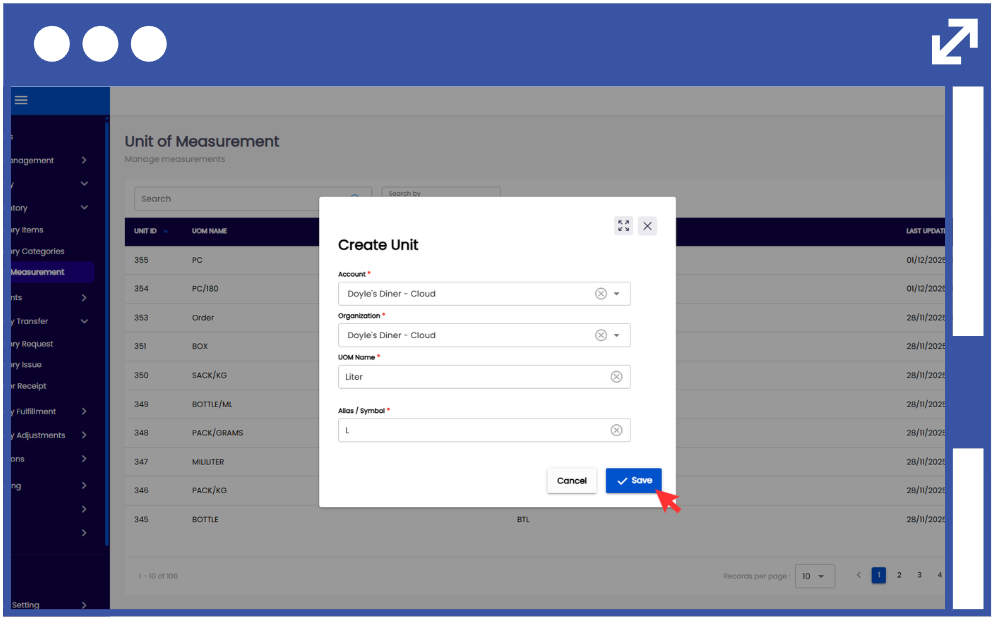
11. In order to modify the unit of measurement, click on the action button using the three-dots.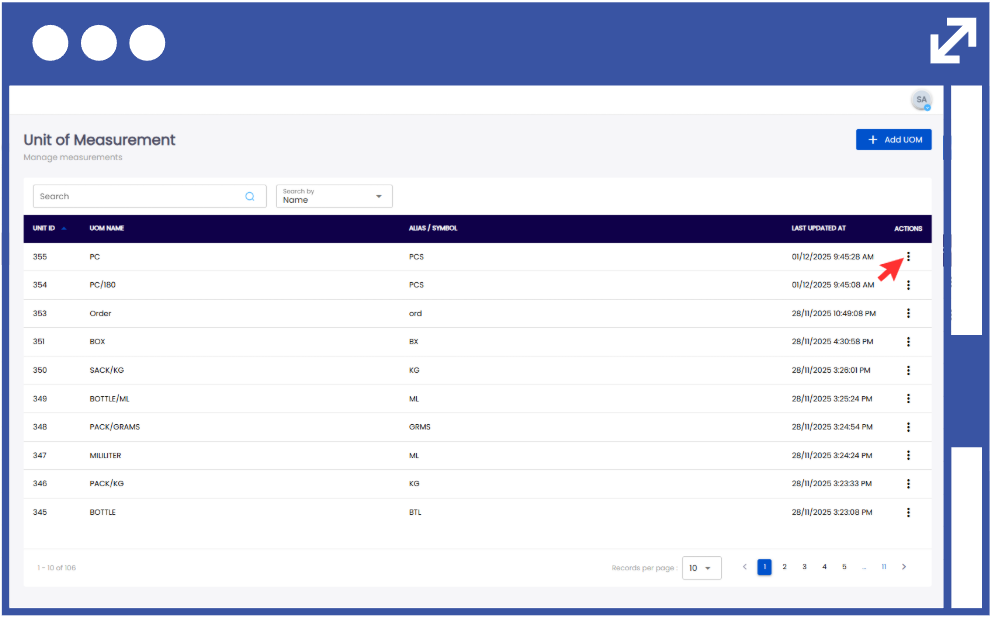
12. Select "Edit" to modify the desired UOM.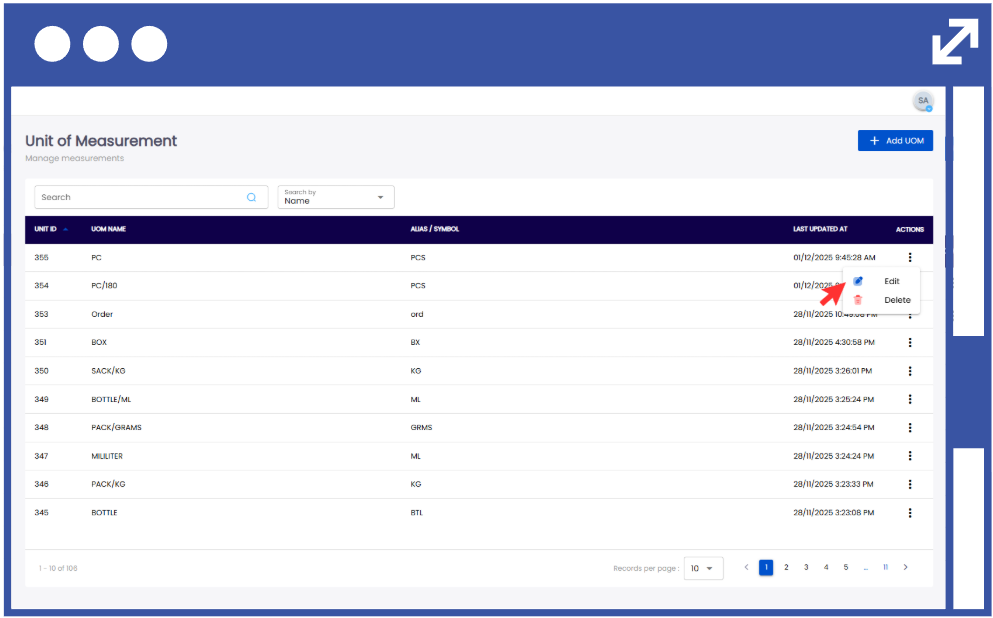
13. Input the changes required. 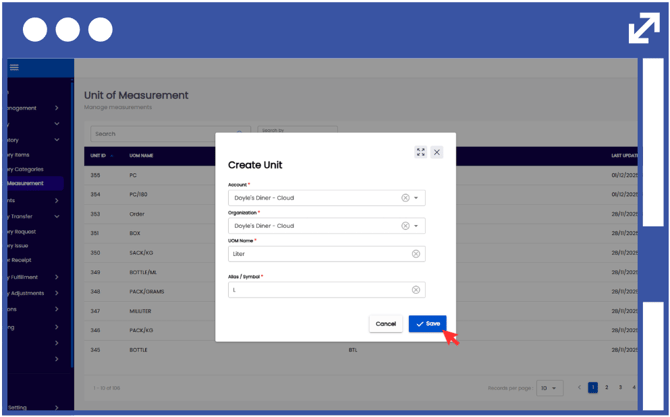
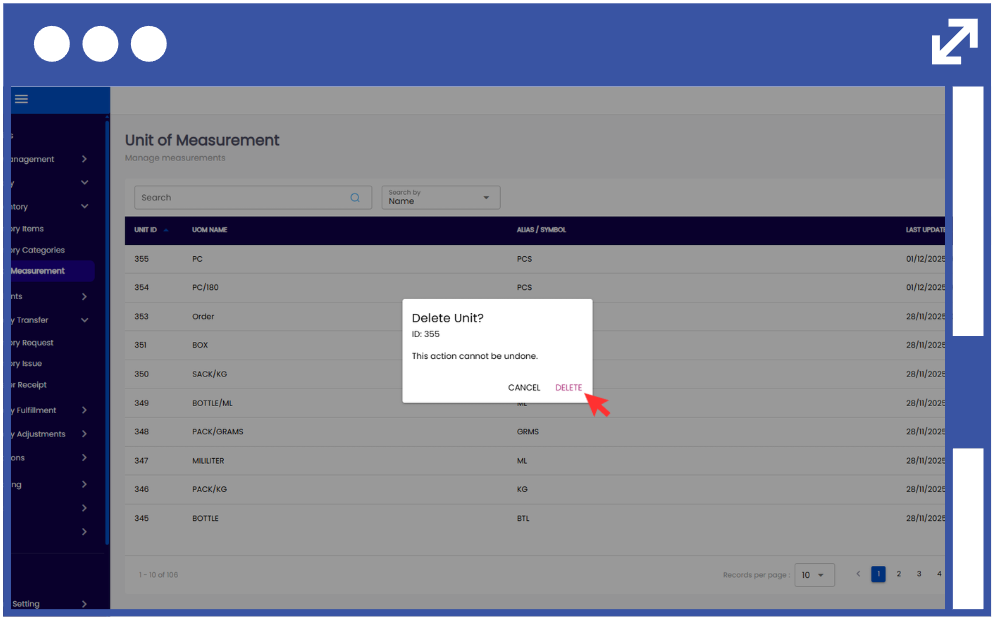
14. To delete an existing UOM, select "Delete".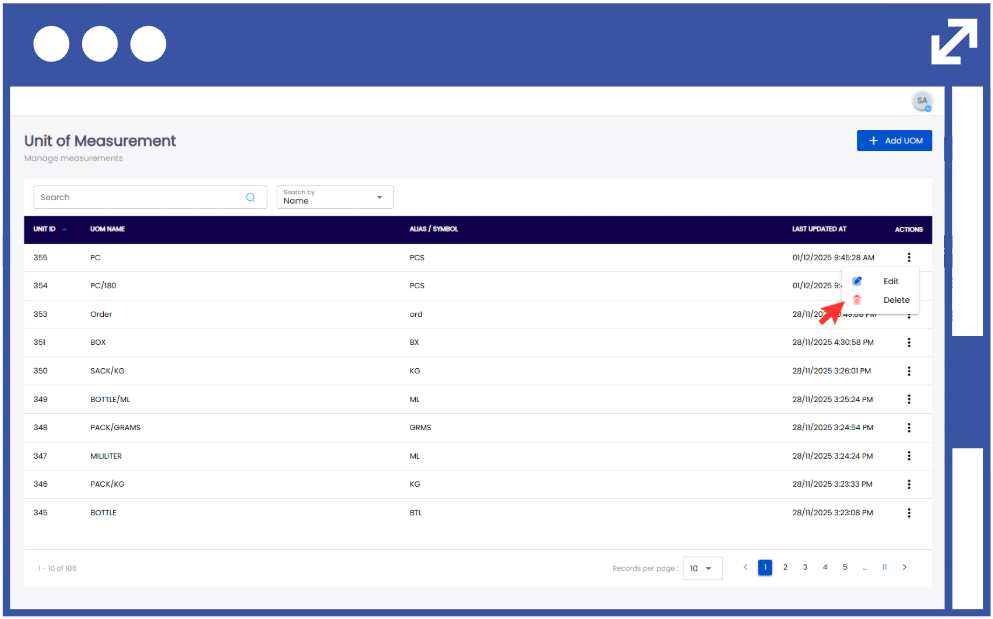
15. When deleting an item, ensure that the selected UOM corresponds to the Unit ID before clicking “Delete.”