![Mosaic Full Logo Blue (Transparent).png]](https://support.mosaic-solutions.com/hs-fs/hubfs/Mosaic%20Full%20Logo%20Blue%20(Transparent).png?height=31&name=Mosaic%20Full%20Logo%20Blue%20(Transparent).png)
1. Log in to the Mosaic Analytics Inventory Console.
https://backoffice-console.mosaic-pos.com/
2. Click on the 3-lines to display the side-panel menu.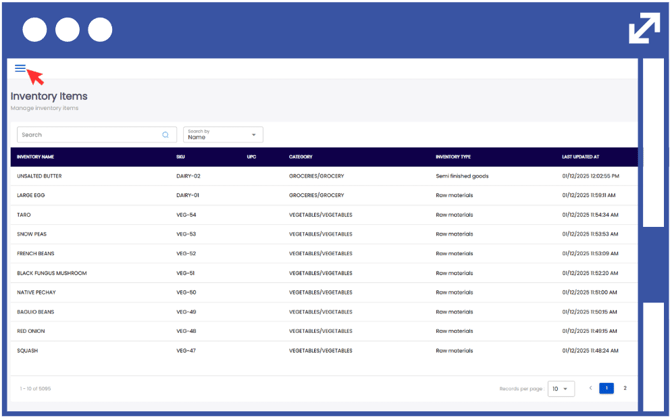
3. On the side-panel menu, click on "Inventory".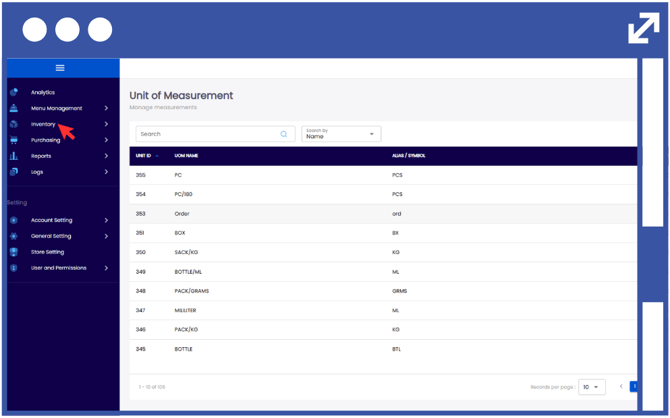
4. Select "Productions".
5. Select "Production Demand."
Note: You can filter through the Production Demand log by typing the Request Number
6. Click "Add Demand".
7. From the drop-down list, input the following details:
Request To: Branch or Location of origin of the stock/inventory.
Request For: Branch or Location where the items will be delivered.
Note: The Notes box is optional, so you can leave it blank if you have nothing extra to add.
8. From the drop-down list, select the Inventory Result.
9. Input the Planned Quantity.
10. Click "Generate".
Notes:
Stocks and Ingredients will automatically be allocated depending on the planned quantity amount.
You can add more items depending on the required list of materials and ingredients that you will be needing.
11. Click "Save."