![Mosaic Full Logo Blue (Transparent).png]](https://support.mosaic-solutions.com/hs-fs/hubfs/Mosaic%20Full%20Logo%20Blue%20(Transparent).png?height=31&name=Mosaic%20Full%20Logo%20Blue%20(Transparent).png)
1. Log in to the Mosaic Analytics Inventory Console.
https://backoffice-console.mosaic-pos.com/
2. Click on the 3-lines to display the side-panel menu.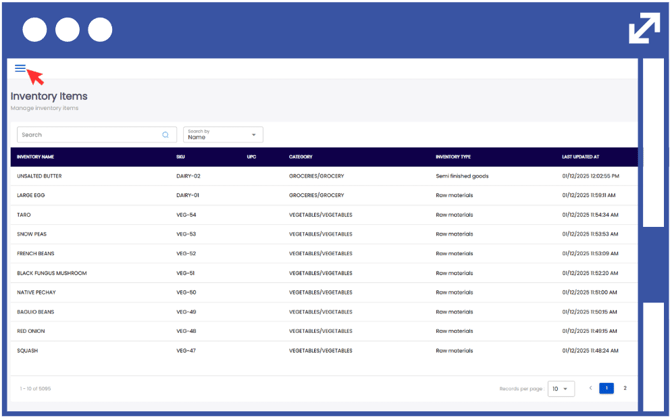
3. On the side-panel menu, click on "Inventory".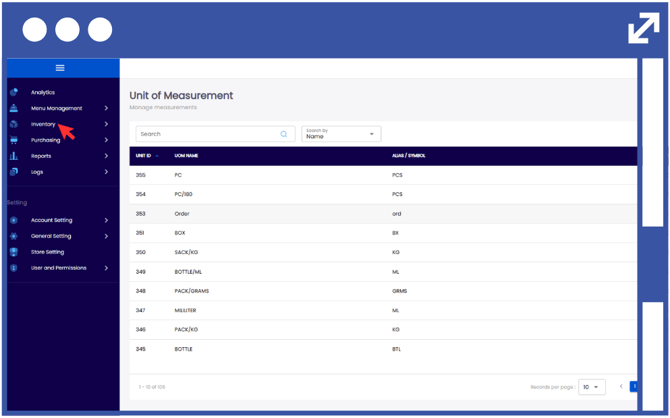
4. Select "My Inventory".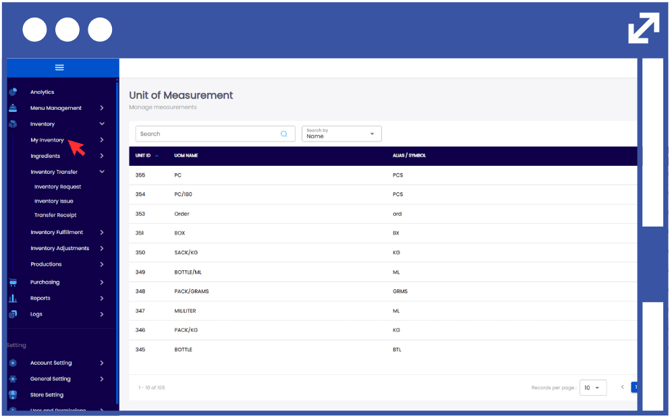
5. Select "Ingredients".
6. Click "Menu-Item Composition".
Note: Search for an existing product using the search bar, or filter the results by selecting Name or ID from the drop-down list.
7. In order to modify the Menu-Item Composition, click on the action button using the three-dots.
8. Click "Edit".
9. Select "Add Ingredient".
10. Click the drop-down arrow to display the list of created inventory items, and select the ingredient to be used.
11. Enter the required quantity according to the ingredient breakdown.
12. Click "Add Ingredient" to add additional items.
Notes:
The cost per unit and cost estimation will be automatically automatically computed from your account data.
To remove an ingredient, click "Delete".
13. The General Selling Price can also be entered manually and included in the total price breakdown calculation.
14. Click "Update".