![Mosaic Full Logo Blue (Transparent).png]](https://support.mosaic-solutions.com/hs-fs/hubfs/Mosaic%20Full%20Logo%20Blue%20(Transparent).png?height=31&name=Mosaic%20Full%20Logo%20Blue%20(Transparent).png)
1. Log in to the Mosaic Analytics Inventory Console.
https://backoffice-console.mosaic-pos.com/
2. Click on the 3-lines to display the side-panel menu.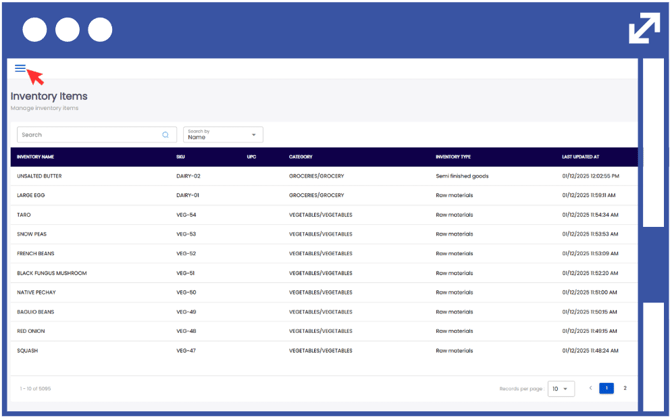
3. On the side-panel menu, click on "Inventory".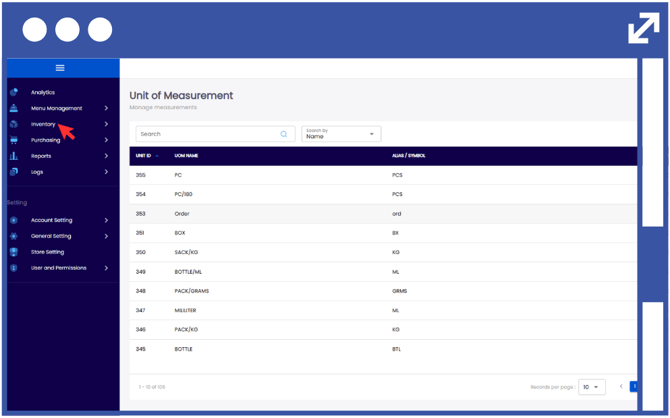
4. Select "Productions".
5. Select "Inventory Productions."
Note: You can filter through the Inventory Productions log by typing the Production Number
6. Click "Add Production".
7. From the drop-down list, select the branch/location.
8. Enter notes that will serve as a reference for the purpose of the request.
9. Click "Next".
10. From the drop-down list, select the Inventory Result.
11. Input the Planned Quantity.
12. Input the Result Quantity.
Notes:
Inventory Result refers to the finished goods produced from the inventory items.
Inventory Production shows the outcome of comparing the system’s planned stock quantity with the actual result count.
13. Click "Save".