![Mosaic Full Logo Blue (Transparent).png]](https://support.mosaic-solutions.com/hs-fs/hubfs/Mosaic%20Full%20Logo%20Blue%20(Transparent).png?height=31&name=Mosaic%20Full%20Logo%20Blue%20(Transparent).png)
1. Log in to the Mosaic Analytics Inventory Console.
https://backoffice-console.mosaic-pos.com/
2. Click on the 3-lines to display the side-panel menu.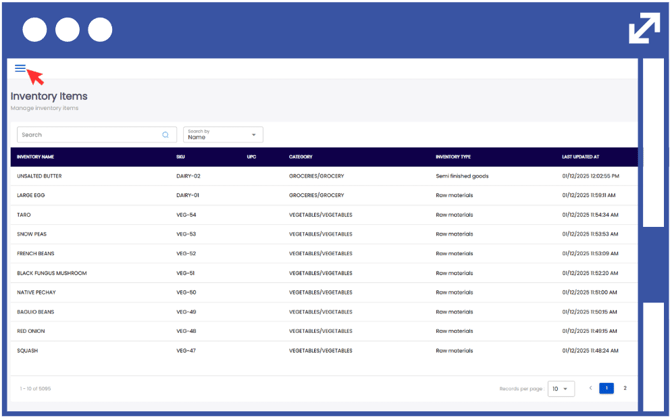
3. On the side-panel menu, click on "Inventory".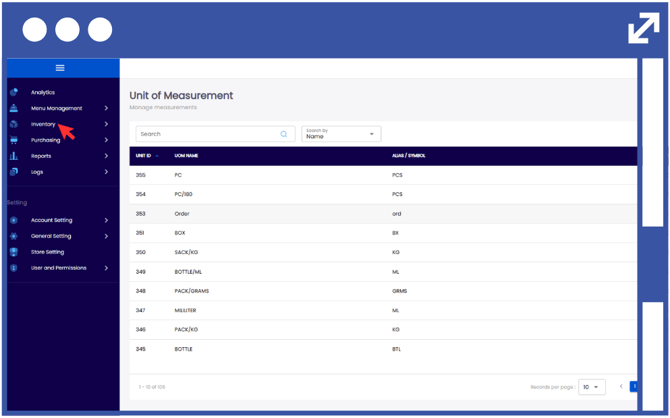
4. Select "My Inventory".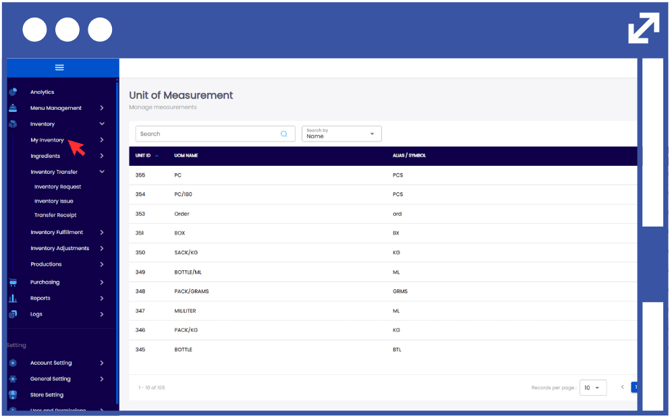
5. Select "Inventory Items".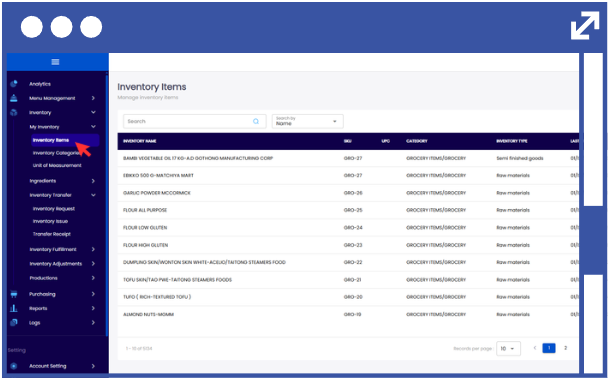
6. Click "Add Inventory".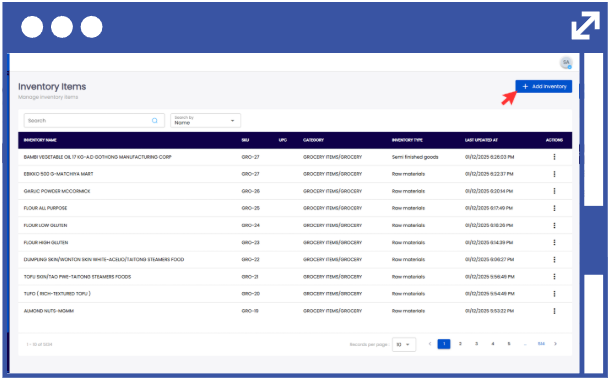
7. Input the following details on the required fields:
- Inventory Name
- Stock Keeping Unit (SKU)
8. Select the Inventory Type from the drop-down list.
Raw Materials: The basic ingredients you start with
(e.g., flour, sugar, vegetables, meat)
Semi-Finished Goods: Products that are partly prepared but not ready to eat yet
(e.g., dough, chopped vegetables, marinated meat).
Finished Goods: Products that are fully made and ready to sell or eat
(e.g., bread, packaged meals, bottled sauces).
Other Inventories: Anything else stored that supports production but isn’t food itself
(e.g., packaging, cleaning supplies, labels, containers).
Note: Perishables are food that can spoil, go bad, or lose quality quickly if not stored properly (e.g., milk, fresh fruits, meat, eggs).
9. Select the Inventory Category from the drop-down list based on what is associated with your account.
10. Select the Inventory Subcategory from the drop-down list based on what is associated with your account.
Note: Product Description is a short explanation of what the food product is, including its main ingredients, flavor, purpose, or how it’s used (e.g., “A creamy tomato pasta sauce made with fresh tomatoes and herbs”).
11. Click "Next".
12. From the drop-down list, select the stock unit that will be used to monitor your item's stock level.
Notes:
Use Custom Recipe Unit: Use the toggle switch to select “Yes” if you need to convert the stock unit to a smaller recipe unit conversion (e.g., liter to milliliter).
Use Custom Purchase Unit: Use the toggle switch to select “Yes” if you need to convert the purchase unit to a smaller stock unit conversion (e.g., liter to milliliter).
13. Click "Next".
14. Select the Tax Setup from the drop-down list based on what is associated with your account.
Notes:
Withholding Tax: A tax that is taken out before you receive your payment. The payer deducts this tax and sends it to the government on your behalf.
VATable Tax (Value-Added Tax): A tax added to the price of goods or services when you buy or sell them. It’s charged on each step of production or sale (e.g., when you purchase food products in a store).
15. Click "Next".
Note: Stock Warning Setup alerts you when your inventory of a product is getting low or reaching a minimum level. This helps you reorder in time to avoid running out of stock.
16. Input the "Minimum Quantity".
17. Input the "Recommended Quantity".
Notes:
Minimum Quantity: This will apply to all outlets and warehouses.
Recommended Quantity: This will apply to all outlets and warehouses.
Enable Auto Purchase Request (PR): Automatically request purchasing of goods or services from the registered/linked supplier.
18. Click "Next".
19. Click "Add Supplier".
20. From the drop-down list, select the supplier name for the inventory item you created.
21. Input the cost per unit of the item.
Notes:
Unit: The unit (UOM) will appear automatically based on the selected stock unit.
Free of Cost: These are goods provided without charge, often as a sample, promotion, or bonus from the supplier.
Min. Order Quantity: The smallest amount of a product that a supplier will accept for an order.
If there is no requirement for a free-of-cost quantity or minimum order quantity, simply enter "0".
22. If you need to add additional suppliers, simply click “Add Supplier”.
23. Click "Save".
24. In order to modify the inventory items, click on the action button using the three-dots.
25. Select "Edit" to modify the desired inventory item.
26. Input the changes required.
27. To delete an existing inventory item, select "Delete".
28. When deleting an item, ensure that the selected inventory item corresponds to the Unit ID before clicking “Delete.”