![Mosaic Full Logo Blue (Transparent).png]](https://support.mosaic-solutions.com/hs-fs/hubfs/Mosaic%20Full%20Logo%20Blue%20(Transparent).png?height=31&name=Mosaic%20Full%20Logo%20Blue%20(Transparent).png)
1. Log in to the Mosaic Analytics Inventory Console.
https://backoffice-console.mosaic-pos.com/
2. Click on the 3-lines to display the side-panel menu.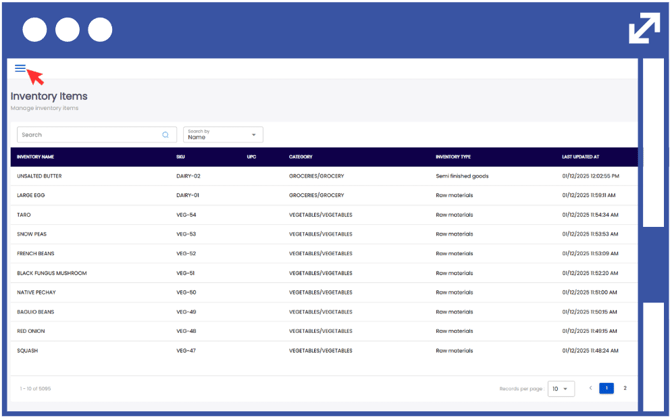
3. On the side-panel menu, click on "Inventory".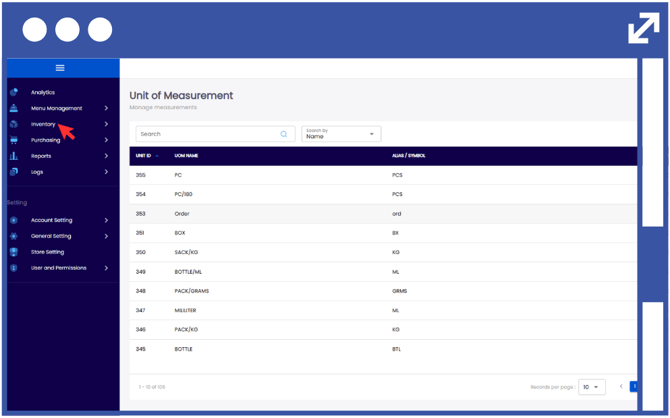
4. Select "My Inventory".
5. Select "Inventory Adjustments".
6. Click "Adjustment Type".
7. Select "Add Adjustment Type".
Note: You can click on the minimize button to reduce the size of the window.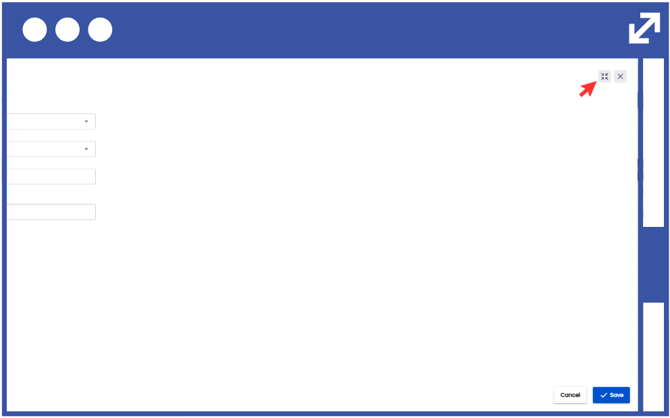
8. Input the desired "Adjustment Type Name".
9. From the drop-down list, select the adjustment type.
Adjust Quantity – Change the stock level of an existing item to match the actual count. Loss – Record inventory that has been lost, damaged, or expired.
Add – Increase inventory for an existing item.
New – Add a completely new item to your inventory system that wasn’t listed before.
Note: The Description box is optional, so you can leave it blank if you have nothing extra to add.
10. Click "Save".