.png?width=201&height=50&name=HP_TICKETING%20SOLUTIONS_LOGO-BLACKDSFAS%20(1).png)
Ticket Stamps
Stamp Categories allow event organizers to create digital stamp campaigns that attendees can collect and redeem for freebies, merchandise, or exclusive perks during the event. This gamifies the attendee experience and drives engagement across booths, concession stands, or activity zones.
Configure your ticket stamps by following these steps:
1. In the Events List, select the event that will have stamps > Go to Stamp Categories.
2. Set a header text (e.g., "Claim your freebies!") for your stamps.

3. To create a stamp category, assign details like the name, subheader and custom image to represent the stamp visually.

4. Configure the Product Variant Settings individually or in bulk - how the stamp will be applied per product variant.
Individual
-
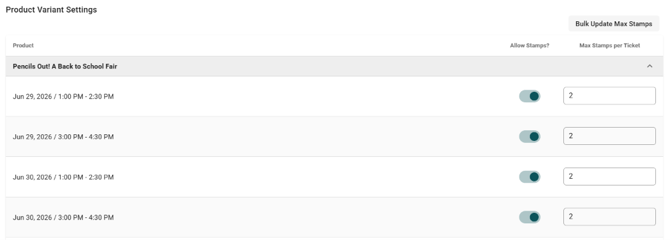
Toggle on "Allow Stamps?".
- Set the "Max Stamps per Ticket" to define how many stamps a single ticket holder can claim to control inventory.
Bulk
- Click “Bulk Update Max Stamps”.
- Select all by ticking the box beside “Product” or select the specific product variants you want to update in bulk.
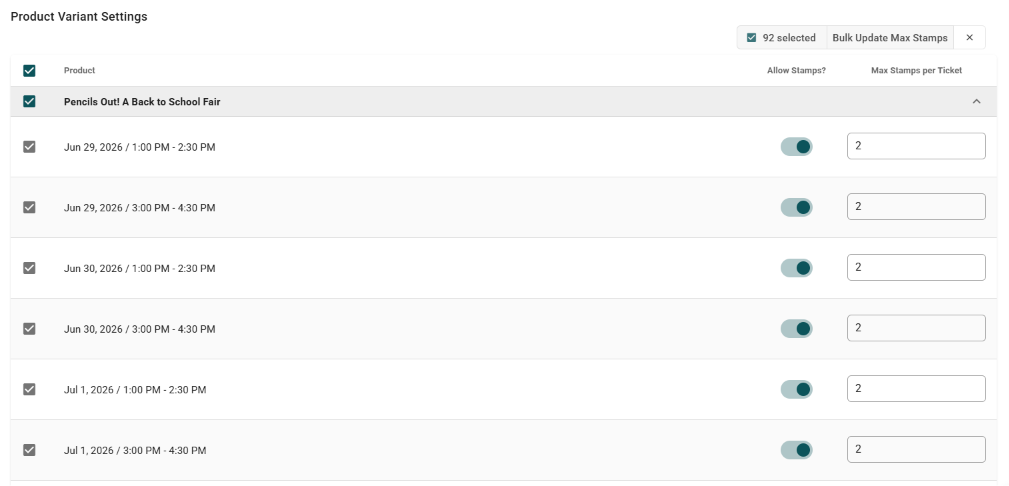
- Click “Bulk Update Max Stamps” again and enter the Max Stamps.
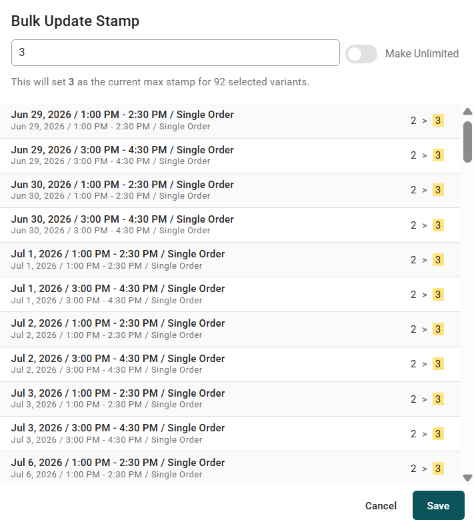
- The bulk update will be automatically reflected upon saving.
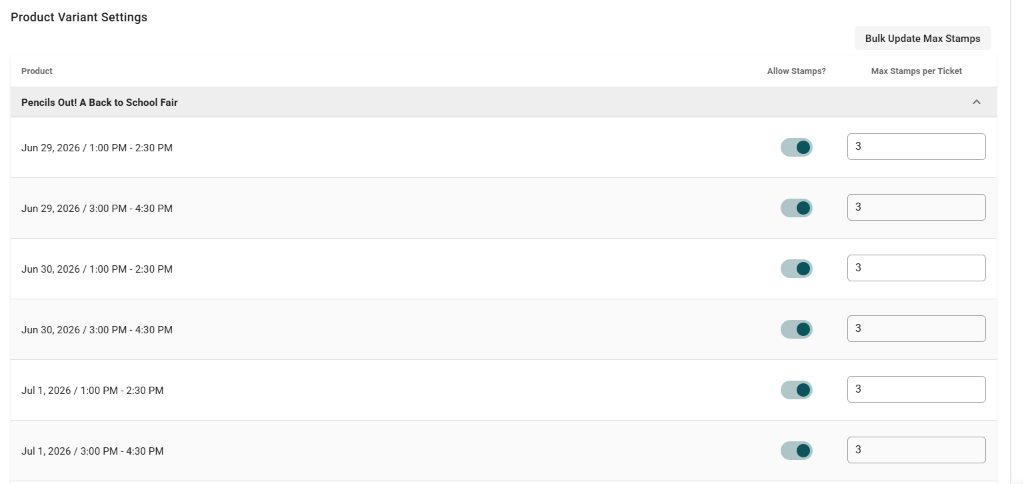
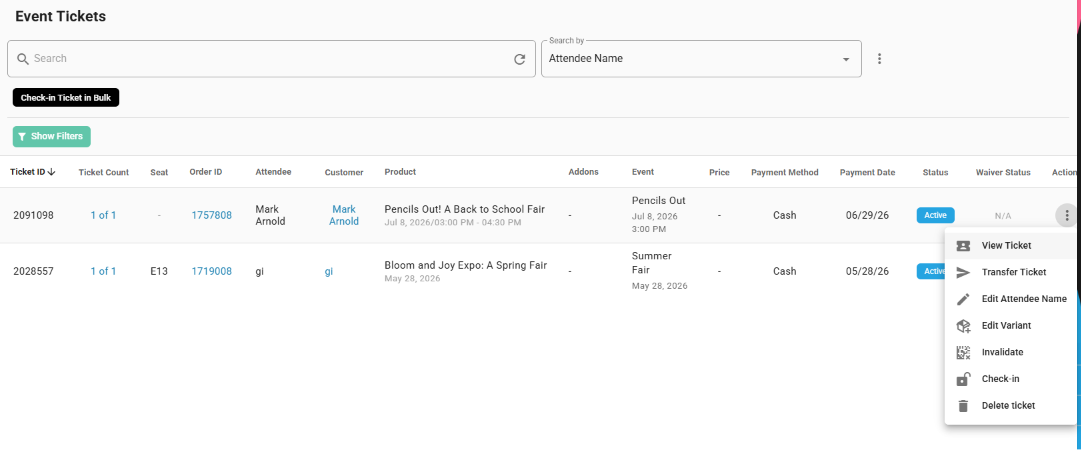
5. To check if the ticket has stamps configured to it already,
- Go to Event Tickets > View Ticket.
- Click “Stamps”.
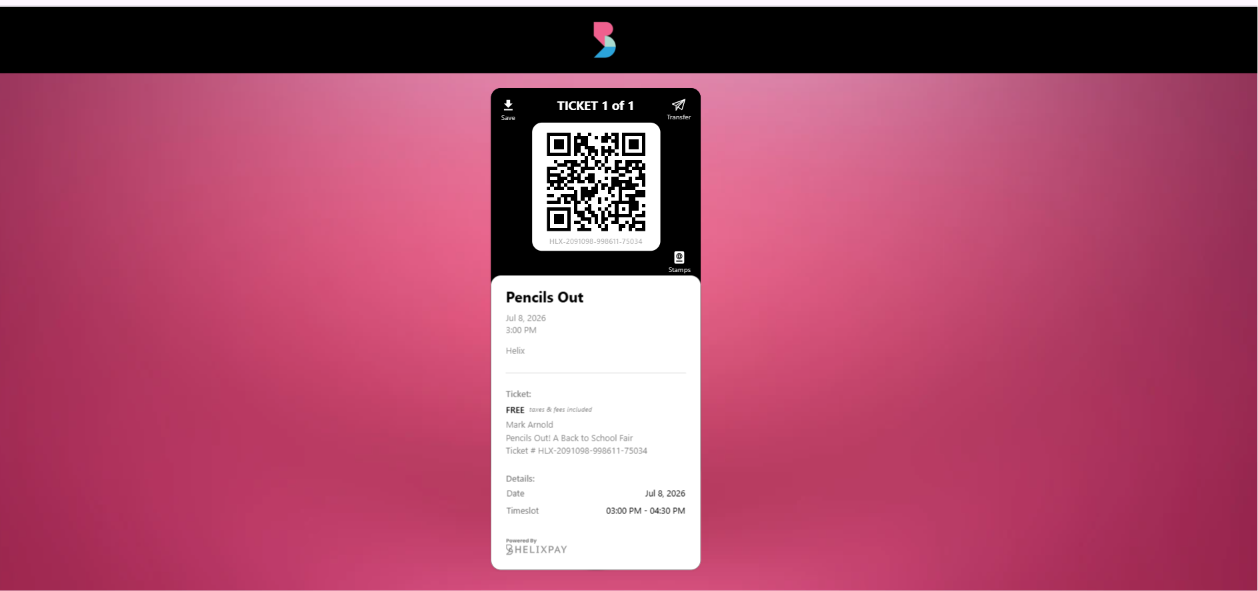
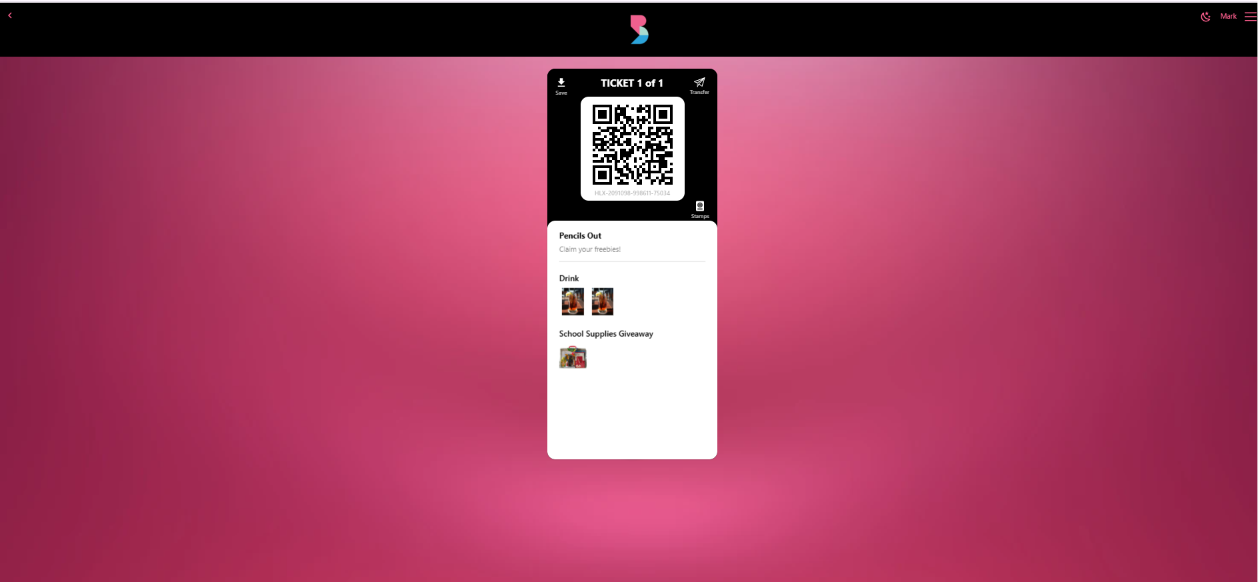
- A blank box below each stamp means that the stamp is still unclaimed.
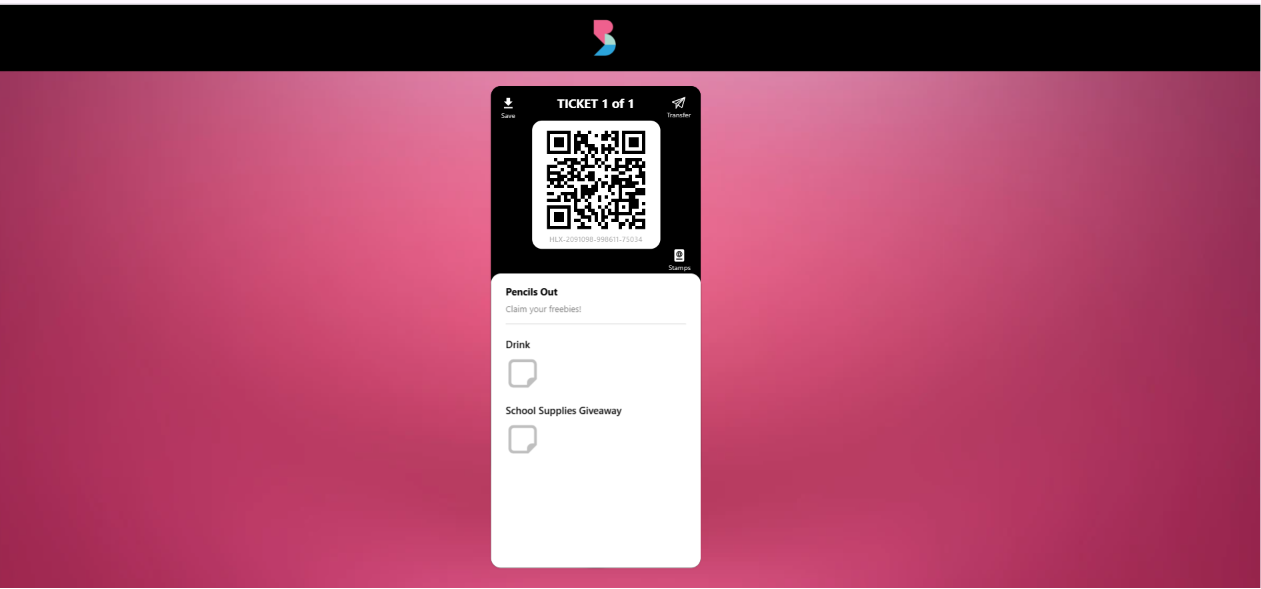
6. To scan a stamp that a guest needs to redeem,
- Make sure that you’re a user with Stamp Permissions enabled under Users. Recall the configuration of Setting Up Users here.
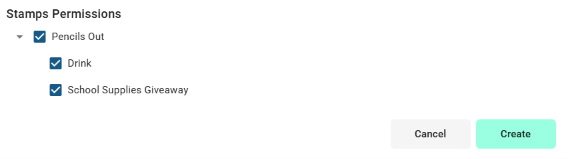
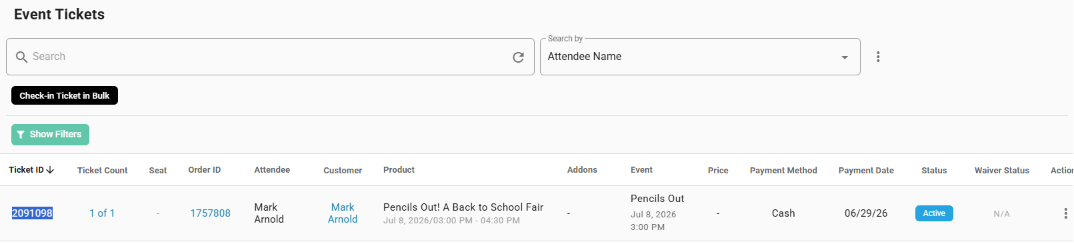
- Go to Event Tickets > View Ticket > Get the Ticket ID.
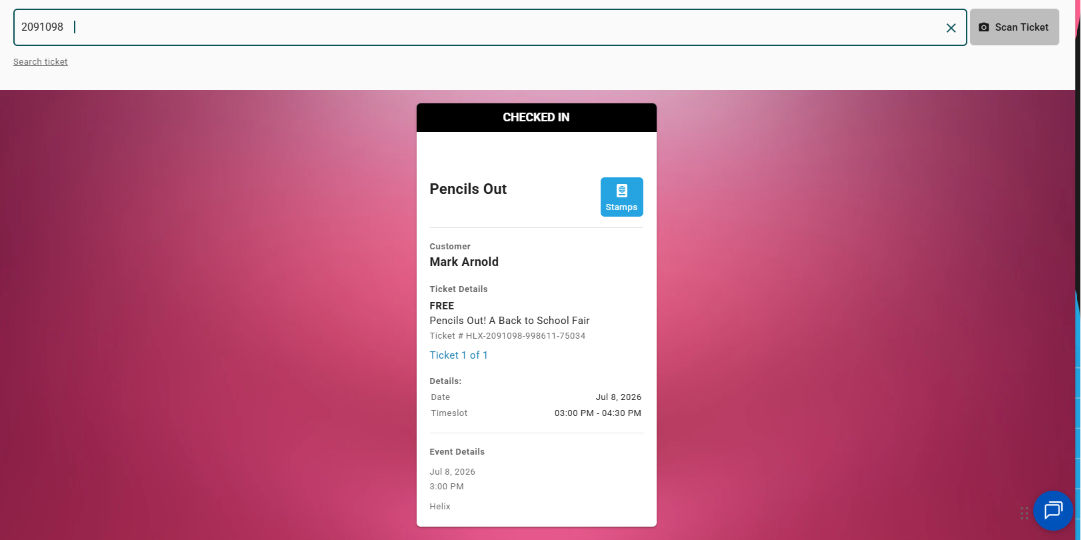
- Go to Scan QR Code > Enter the Ticket ID in the search field > Make sure that the guest is checked-in first > Click Stamps.
- Manage the quantity per stamp based on guest redemption. Increase the count when a guest redeems a stamp, and decrease it when a redemption is canceled. Note: A guest cannot claim beyond the max limit you previously set — the system will enforce this cap automatically. (In the example, the max limit for Drink is 2, which is why you cannot increase it further.)
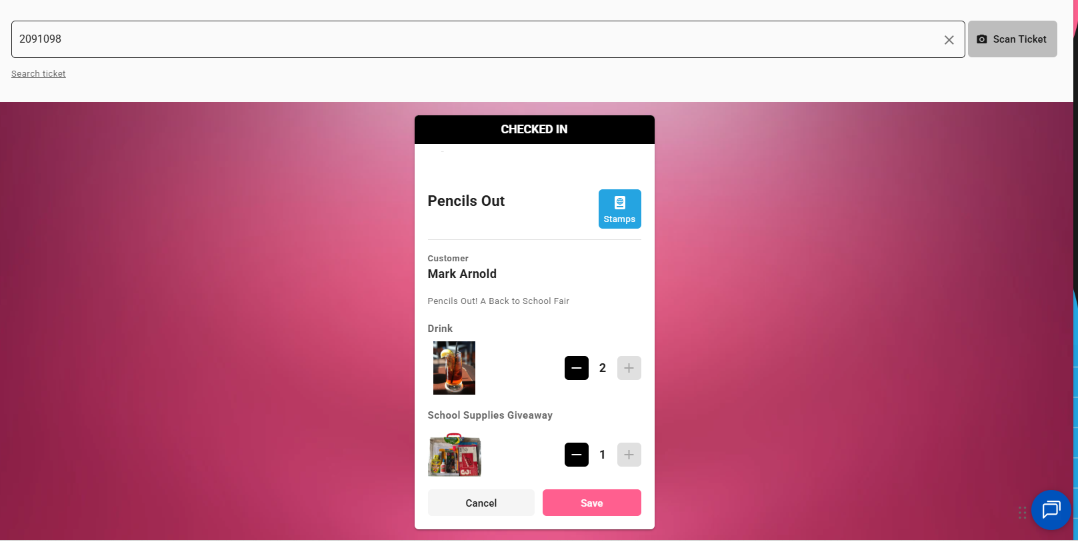
- Upon saving, the stamp redemption status will automatically update and reflect when you view the ticket.
Note: In this example, the guest has claimed its 2 drinks and 1 School Supplies Giveaway as seen in the number of stamps.