.png?width=201&height=50&name=HP_TICKETING%20SOLUTIONS_LOGO-BLACKDSFAS%20(1).png)
Hero Section or Carousel Banners
The Hero Section is the large, prominent banner area at the top of your storefront, directly below your navigation bar. It's the first thing visitors see and is typically used to highlight key events, promotions or important announcements
Desktop Version of Hero Section
Sample Desktop Version of Hero Section on the storefront:
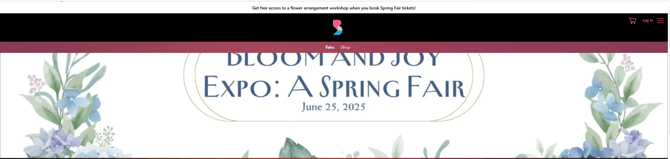
Configure your hero section (desktop version) by following these steps:
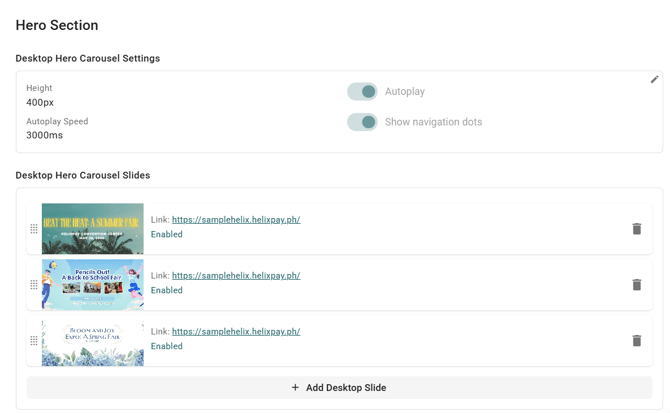
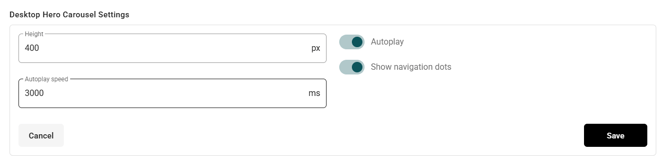
1. Under Desktop Hero Carousel Settings, indicate the height and autoplay speed and use the toggles to control the “Autoplay” and “Show navigation dots” functions.
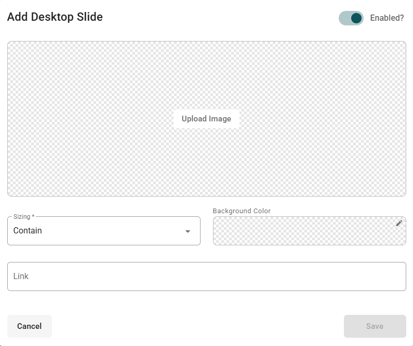
2. Click “+Add Desktop Slide” to upload a carousel slide.
- Toggle on “Enabled”.
- Upload the image of the carousel slide.
- Manage the sizing and background color.
- Input the link connected to the carousel slide.
Mobile Version of Hero Section
Sample Mobile Version of Hero Section on the storefront:
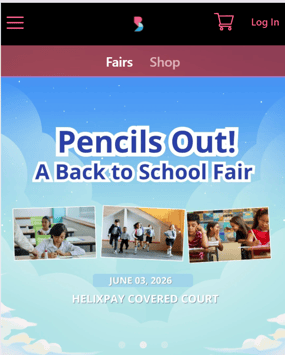
Configure your hero section (mobile version) by following these steps:
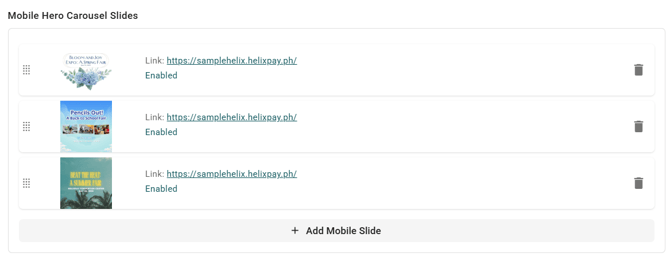
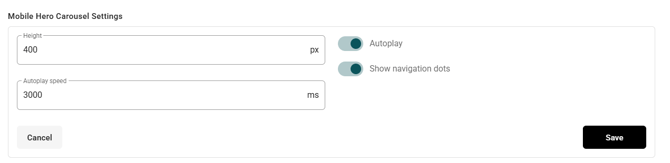
1. Under Mobile Hero Carousel Settings, indicate the height and autoplay speed and use the toggles to control the “Autoplay” and “Show navigation dots” functions.
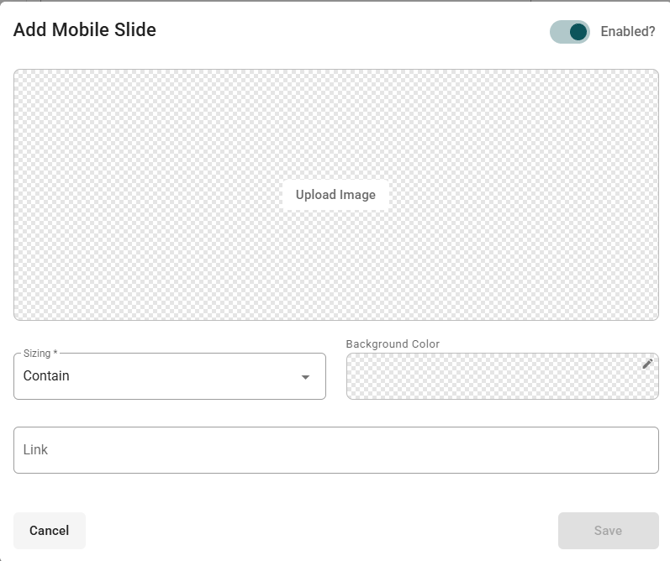
2. Click “+Add Mobile Slide” to upload a carousel slide.
- Toggle on “Enabled”.
- Upload the image of the carousel slide.
- Manage the sizing and background color.
- Input the link connected to the carousel slide.
Store Headline
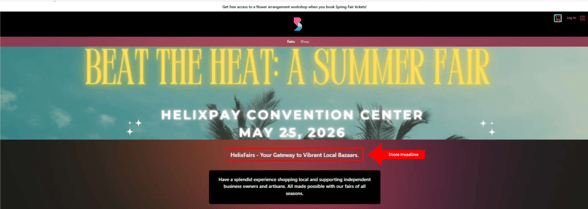
The Store Headline is a one-liner text defining your storefront.
Sample of Store Headline on the storefront:
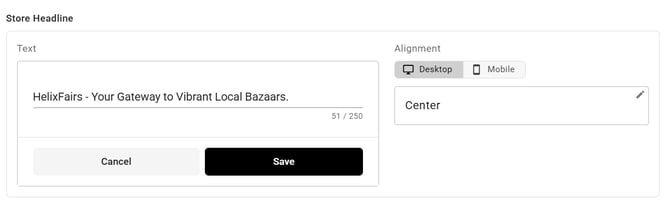
Configure your Store Headline by following these steps:
1. Under Store Headline, input the text.
2. Manage the alignment for desktop and mobile views.
Store Description
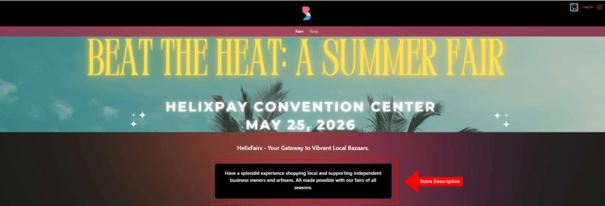
The Store Description is a short paragraph that can explain what your storefront is or provide a call-to-action for your event attendees.
Sample of Store Description on the storefront:
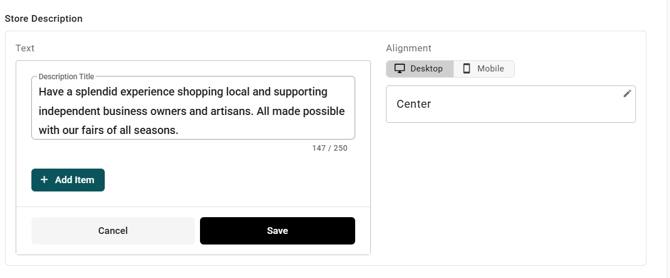
Configure your Store Description by following these steps:
1. Under Store Description, input the text.
2. Manage the alignment for desktop and mobile views.
Hero Section Background
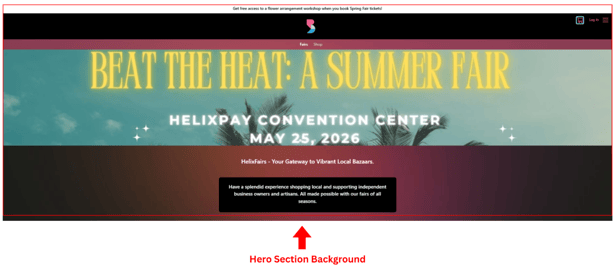
The Hero Section Background is either a colored backdrop or image that covers a big portion of your storefront.
Sample of Hero Section on the storefront:
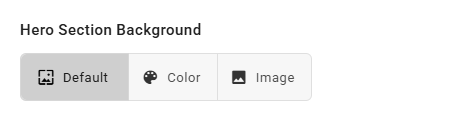
Configure your Store Description by:
Select your preferred background style for the hero section.
Banners
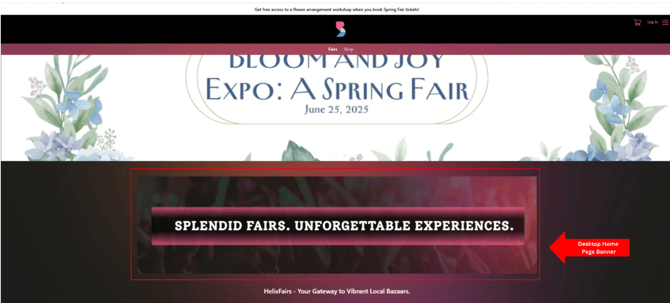
Home Page Banners are static promotional images (or videos) displayed on your event storefront's main page, typically below the hero carousel. They are used to highlight specific campaigns, featured events or branding messages.
Desktop Version of Banner
Sample Desktop Version of Hero Section on the storefront:
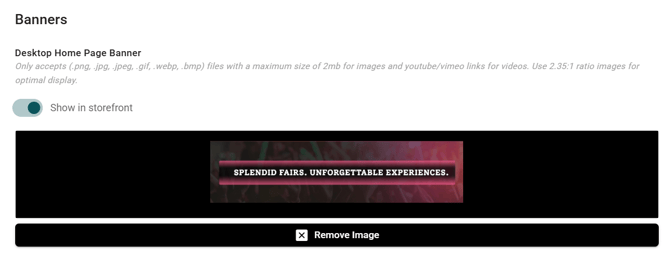
Configure your Hero Section (desktop version) by:
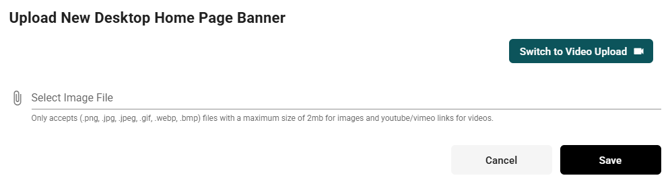
Under Desktop Home Page Banner, toggle on “Show in storefront” and upload desktop-friendly image or video of the home page banner.
Mobile Version of Banner
Sample Mobile Version of Hero Section on the storefront:
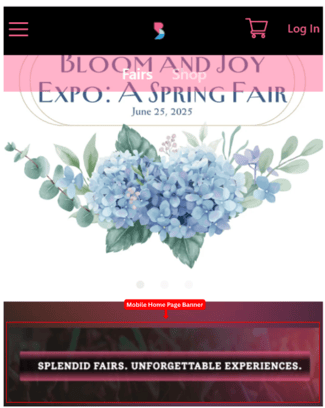
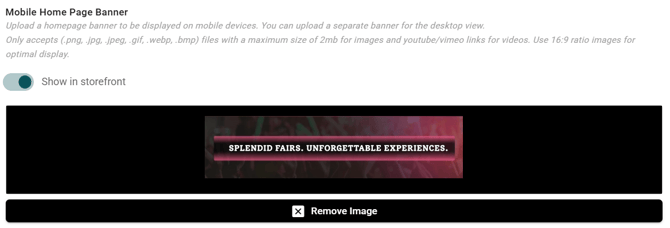
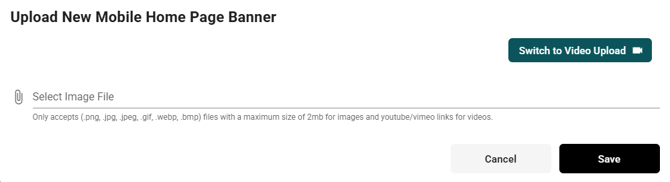
Configure your Hero Section (mobile version) by:
Under Mobile Home Page Banner, toggle on “Show in storefront” and upload mobile-friendly image or video of the home page banner.
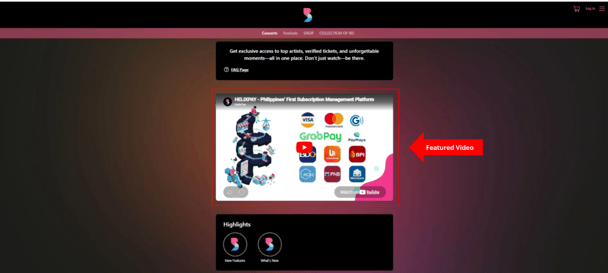
Featured Video
The Featured Video is a promotional video you can embed on your storefront to engage visitors with event trailers, recaps, or announcements.
Sample Featured Video on the storefront:
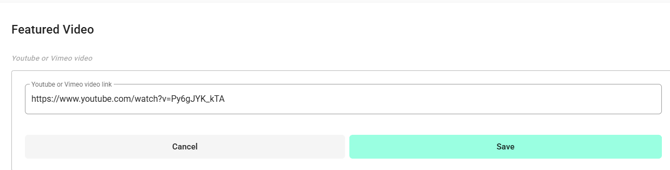
Configure your Featured Video by:
Under Featured Video, encode the link to the video that you want to display on the storefront.
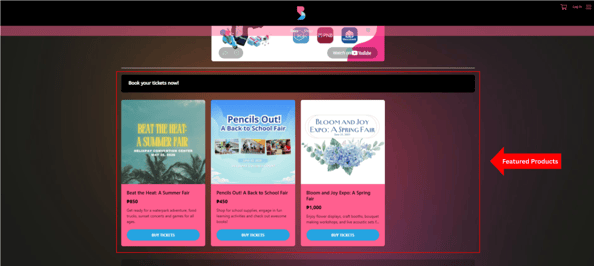
Featured Products
The Featured Products section presents a banner that serves as a call-to-action to the products in your storefront.
Sample Featured Products on the storefront:
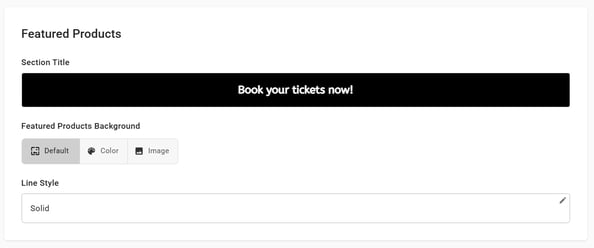
Configure your Featured Products by following these steps:
1. Under Featured Products, input your call-to-action text.
2. Under Featured Products Background, select your background style.
3. Under line style, select what you prefer.
Bottom Banners
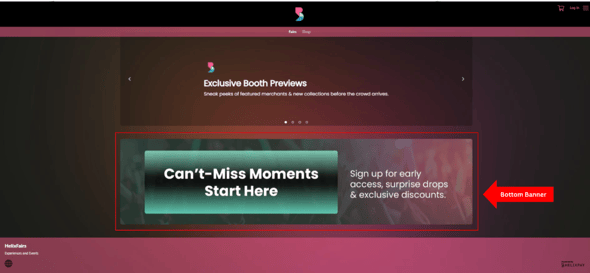
Bottom Banners are promotional blocks placed near the footer of your storefront, used to capture user attention before they leave the page. They typically drive specific actions like email signups, link clicks, or highlighting key content.
Note: You can put up to 2 bottom banners.
Sample Bottom Banner on the storefront:
Configure your Bottom Banners by following these steps:
1. Under Bottom Banners, click “Add Bottom Banner”.
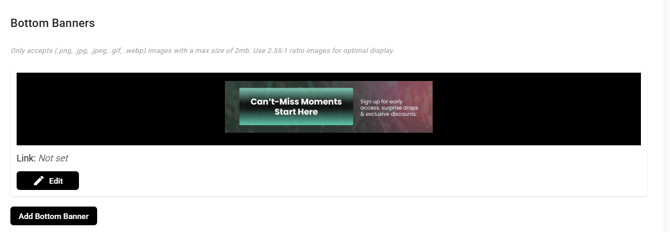
2. Upload the image for your bottom banner.

3. (Optional) Encode the link that connects to your bottom banner if applicable.

4. (Optional) Add one more bottom banner if necessary.