.png?width=201&height=50&name=HP_TICKETING%20SOLUTIONS_LOGO-BLACKDSFAS%20(1).png)
Product Categories
Product Categories allow you to group your products — including events, merchandise, bundles, — into organized sections on your storefront. This makes it easier for customers to browse and find what they're looking for.
Note: In this example, the Product Categories are Fairs and Shop.
Configure your Product Categories by following these steps:
1. Click “+Create New”.

2. Encode the name for the category and control the toggle to manage its visibility.

3. Upload the icon for your product category.

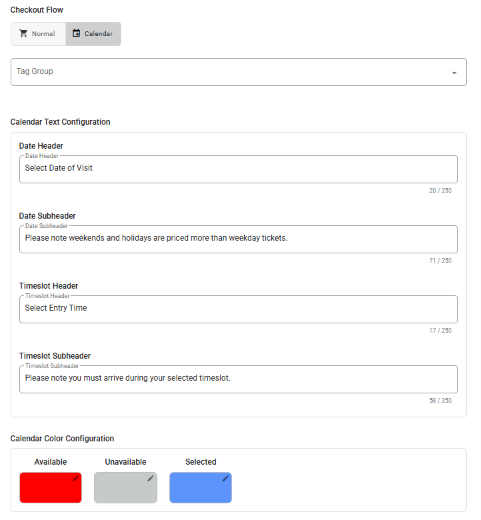
4. Configure the Checkout Flow:
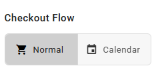
- Normal: For regular events
- Calendar: For events with date and time slots
- Select the tag group (specific session for the event).
- Encode the text for the date header & subheader and timeslot header & subheader.
- Configure the calendar colors.
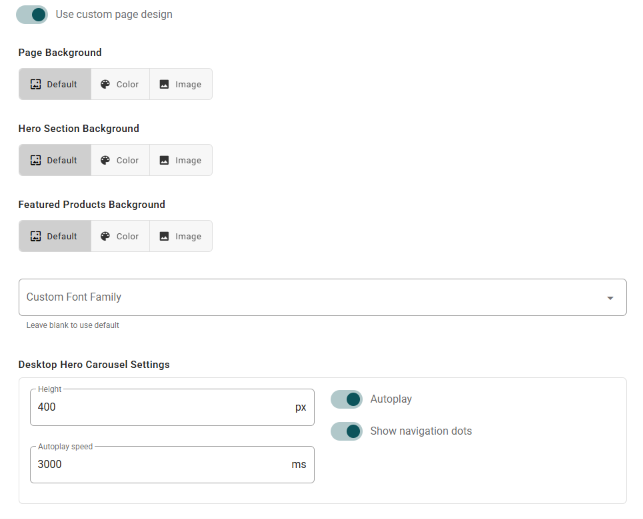
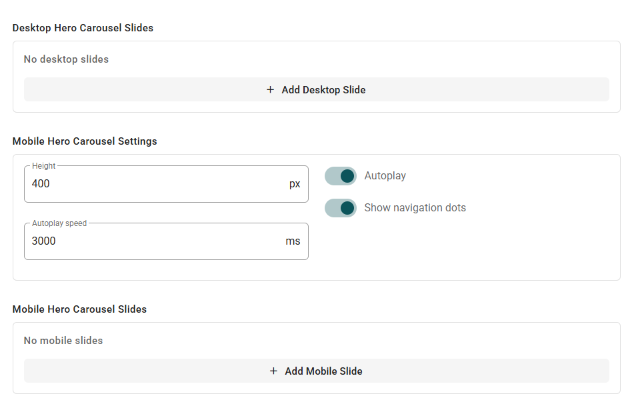
5. (Optional) For merchants with multiple product/event categories that have different themes, you can customize the page design for a specific category by toggling on “Use custom page design”. You may follow the same principles found on Store Home Page as it entails setting up banners, videos and the like.
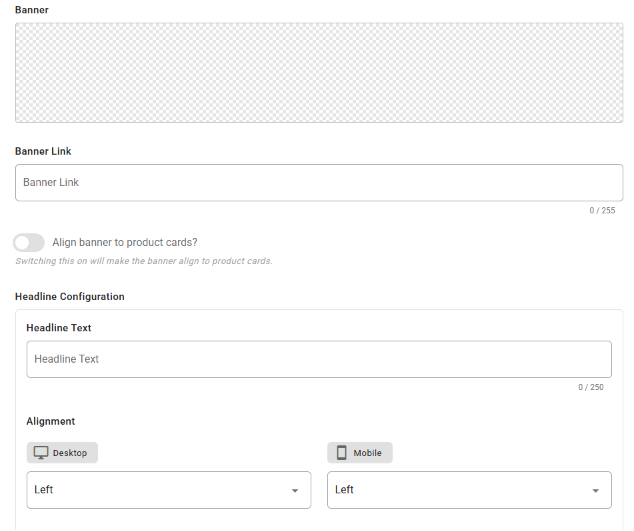
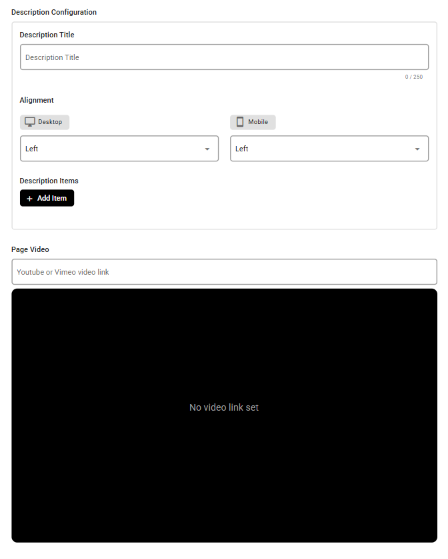
6. To include selected products in a Product category:
- Click “+Add”.

- Select the products.
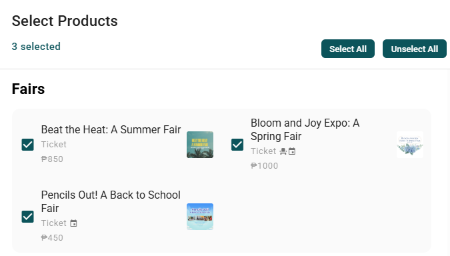
- See the products reflected in the list.
- (Optional) Click “Featured” to place the product on top of the storefront.
- (Optional) Click “Sort A-Z” to automatically classify the products alphabetically.
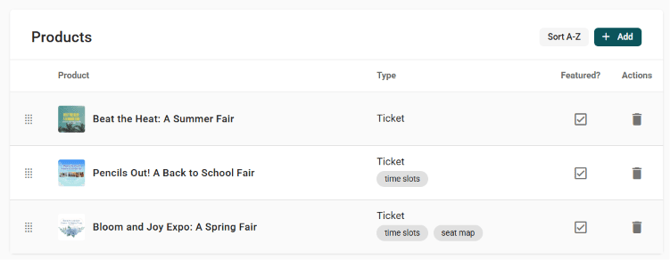
7. (Optional) To add Content Cards:
- Click “+Add”.

- Select the content cards of your choice.
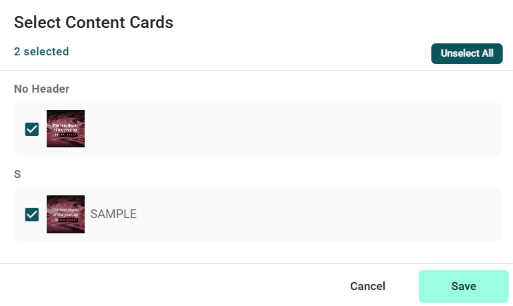
- See the content cards reflected in the list.
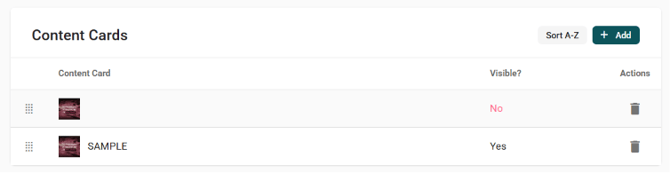
- (Optional) Click “Sort A-Z” to automatically classify the content cards alphabetically.
8. (Optional) To add Distinctive Features: '
- Click “+Add”.

- Select the distinctive features of your choice.
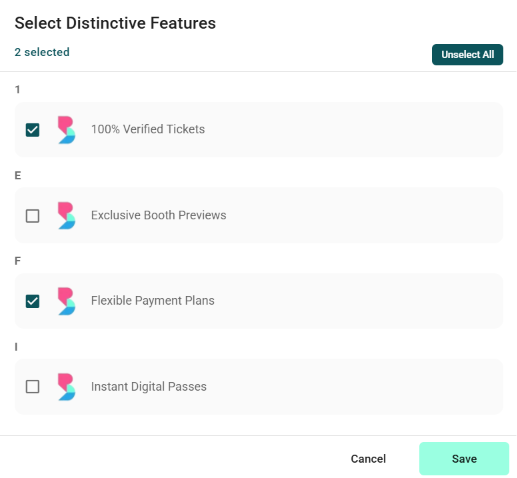
- See the distinctive features reflected in the list.
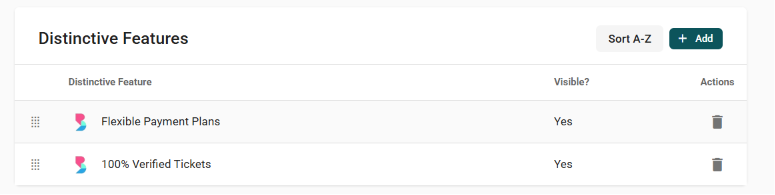
- (Optional) Click “Sort A-Z” to automatically classify the distinctive features alphabetically.
9. Once done adding and setting up your Product Category:
- See it reflected in your Product Categories list.
- Toggle on to make it visible.
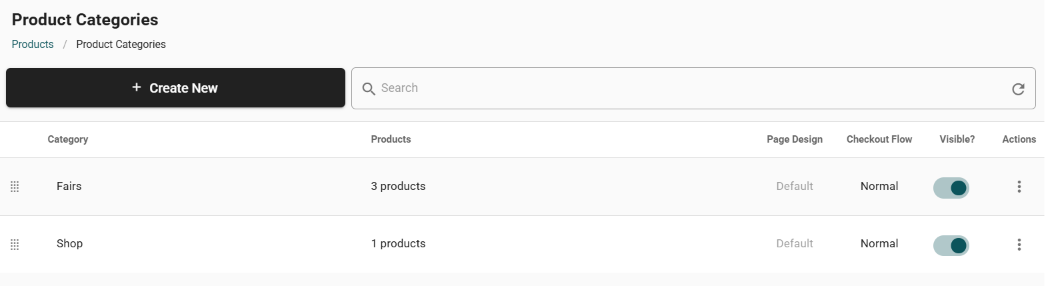
- Click the vertical ellipsis (⋮ ) under Actions to edit, delete, copy group link (URL) and manage FAQs for your selected product category.
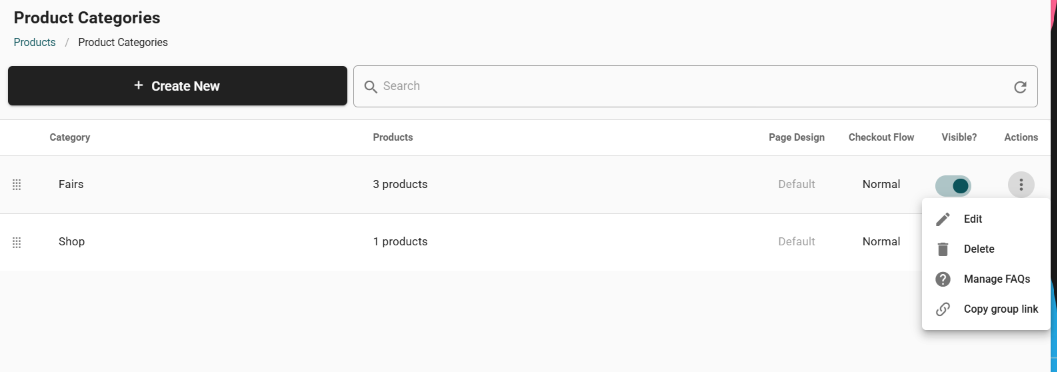
- (Optional) Configure the FAQs page of your product category by click “Manage FAQs”.
- Set-up the header title, alignment & font, FAQ Question font and FAQ Answer font by clicking the ✐edit icon in the upper right portion of each area.
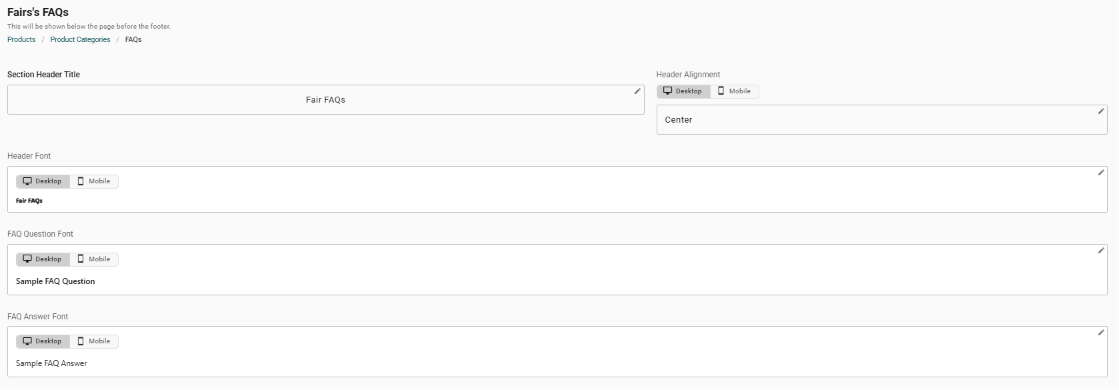
- Encode the FAQ content by clicking “+Add FAQ Item”.

- Set-up the header title, alignment & font, FAQ Question font and FAQ Answer font by clicking the ✐edit icon in the upper right portion of each area.