.png?width=201&height=50&name=HP_TICKETING%20SOLUTIONS_LOGO-BLACKDSFAS%20(1).png)
Bulk Create Users
The Bulk Create Users feature allows you to efficiently add multiple users to your event management system at once, each with predefined roles and permissions. This is especially useful for events that require multiple staff members — such as ticket scanners, ushers, or gate managers who need system access.
Configure your users in bulk by following these steps:
1. Click the vertical ellipsis (⋮ ) > Bulk Create Users.

2. Assign a Role (e.g., Admin, Scanner, Staff, Gate Manager, Cashier) that defines the user's primary function.
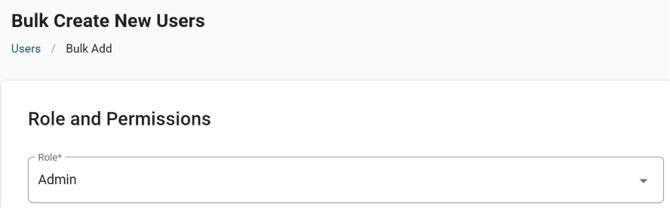
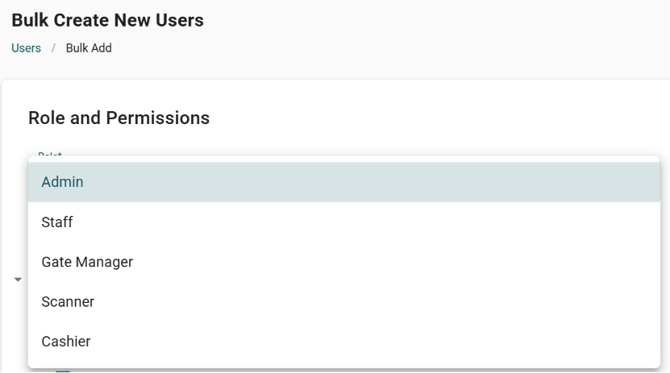
3. Grant specific Permissions on a granular level — controlling access to areas (e.g. Homepage Analytics, Orders, Vouchers, Events). This ensures each user only sees and modifies what they're authorized to handle.
Note: Selecting a role (e.g., Scanner) will automatically tick the corresponding permission levels for that role. You can then adjust permissions manually as needed — giving you flexibility while saving time on setup.


4. Select user groups to organize users into specific batches or categories for easier management. See how to set-up User Groups here.


5. Add users through the following ways:
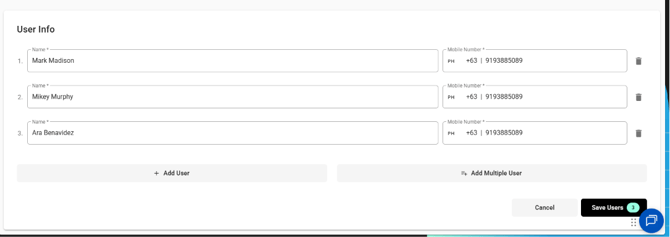
- + Add User button to add an individual user.

- + Add Multiple User to quickly create several users at once (ideal for large teams) > Indicate the number of users.

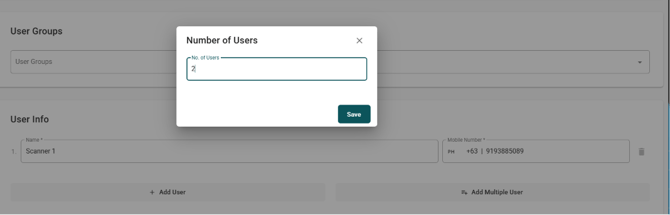
6. Encode each user's Name and Mobile Number.
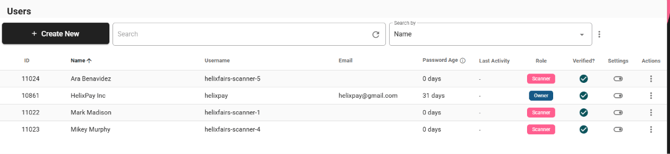
7. The users will be reflected in the Users interface.
8. To give your users immediate log-in access,
- Click “Export Log In links”.

- Choose the export type (CSV or Google Sheet).
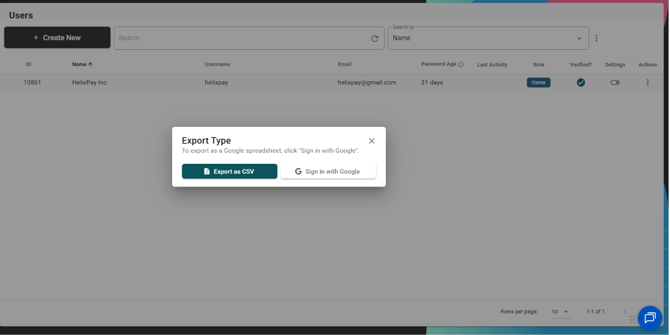
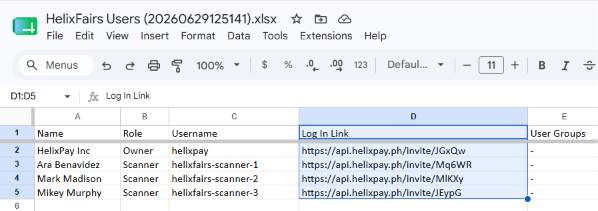
- Check and distribute the log-in links to the users based on Column D of the exported sheet.